Frame-by-frame control
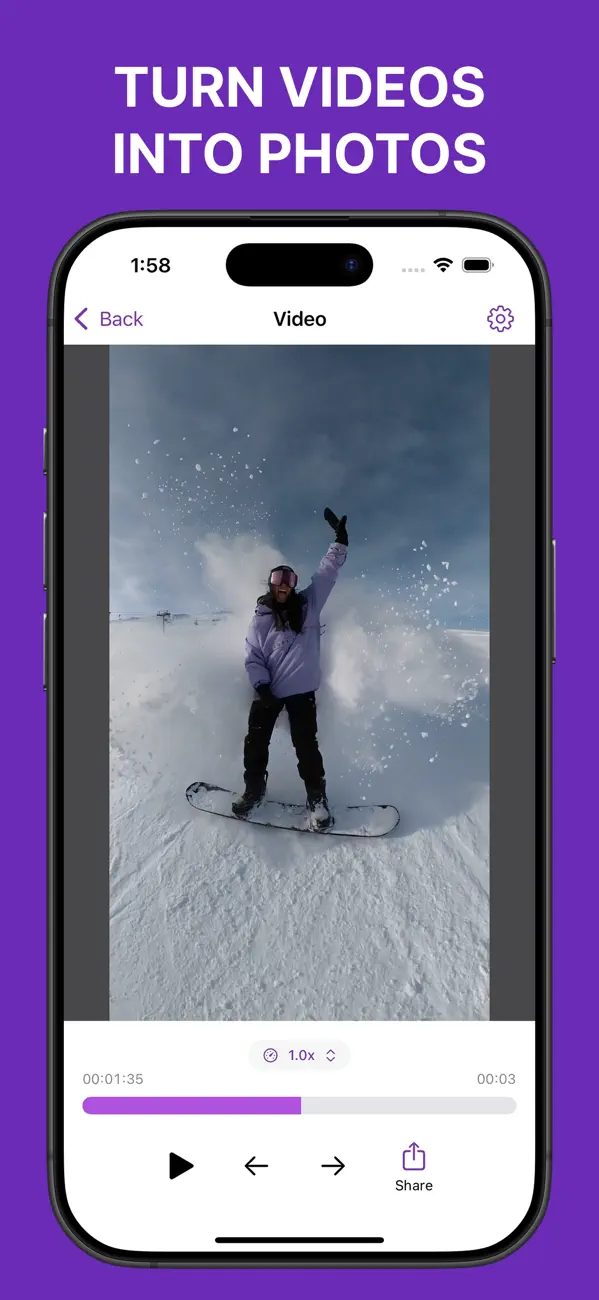
Scrub the timeline to get close, then step backward or forward one frame at a time.

You filmed the laugh, the jump, the candles going out. Frame Grabber finds that exact frame and saves it as a real photo, without screenshot blur or player controls.


Features
Frame Grabber is an iPhone app that saves a single frame from a video or Live Photo as a separate photo. You step through the clip one frame at a time, pick the moment you want, and export it as JPEG, HEIF, or PNG. Everything is processed on your iPhone.
Scrub the timeline to get close, then step backward or forward one frame at a time.
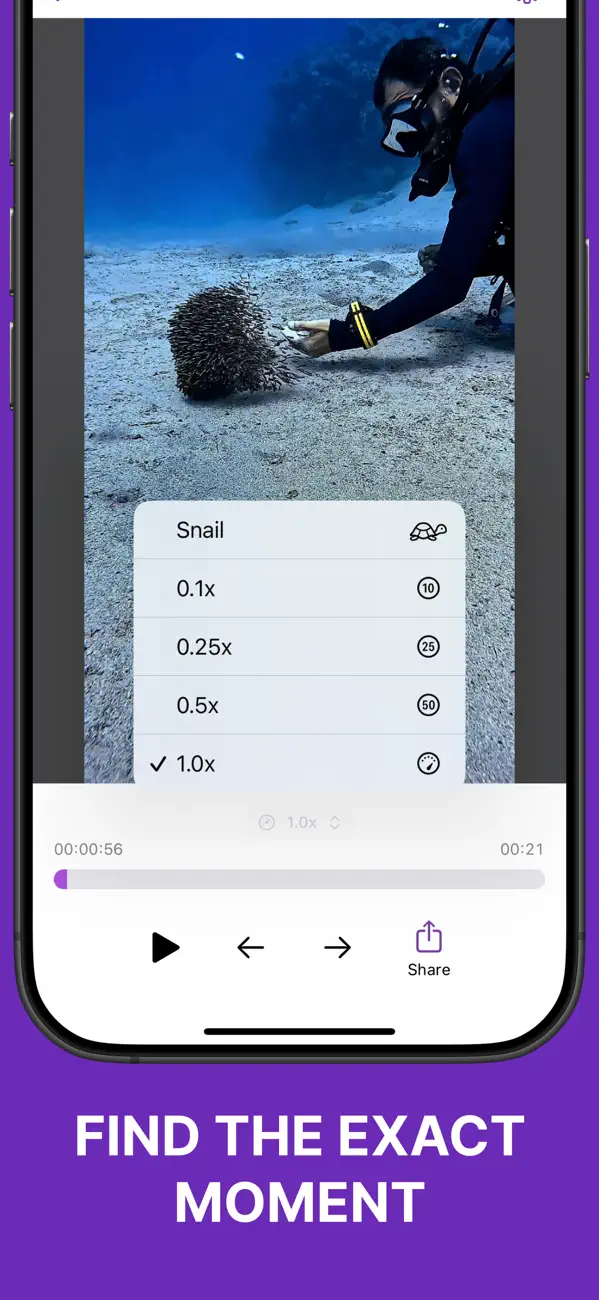
Drop playback to a fraction of normal speed to catch a moment that is over in a blink.
Open any video or Live Photo in your library and pick a different moment from the one iPhone chose.
JPEG for sharing, HEIF to save space, or lossless PNG for editing, with adjustable JPEG and HEIF quality.
The original capture date and location carry over when the video has them. Switch it off whenever you like.
Every frame is processed on your iPhone, works offline for media on your device, and needs no account.
Frame Grabber vs. a screenshot
Pausing a video and taking a screenshot gets you the wrong frame, a smaller image, and sometimes the playback controls too. Frame Grabber reads the frame straight from the original video, so the photo looks like you took it on purpose.
| Frame Grabber | A screenshot | |
|---|---|---|
| What you save | The actual frame from the video | Whatever is on screen |
| Picking the moment | One frame at a time | Pause and hope |
| Controls and overlays | Never included | Often caught in the shot |
| Date and location | Kept from the video | Dated when you took the screenshot |
How it works
Open any video or Live Photo from your library.
Scrub to get close, then move one frame at a time to pick the exact moment.
Pick a format and quality, then save it to Photos or share it straight away.
Yes. Frame Grabber is free to download from the App Store. Some features require a subscription or a one-time purchase for lifetime access.
Open the video in Frame Grabber, scrub close to the moment, and step one frame at a time until it looks right. Then choose JPEG, HEIF, or PNG and save the frame to Photos.
You can open regular videos and Live Photos from your iPhone photo library.
Frame Grabber exports the selected frame from the source video, so you get the exact moment at the video’s resolution with no playback controls or other screen elements.
You can save a frame as JPEG, HEIF, or PNG and adjust the quality for JPEG and HEIF files.
No. Frame Grabber processes your videos and Live Photos on your iPhone, and it works offline for media already on your device.
Keep reading
Comparison
How to turn a video moment into a photo on iPhone, including the new Save Video Frame option in iOS 27, and the best apps when you need the exact frame.
Read postComparison
Compare JPEG, HEIF, and PNG for still frames saved from iPhone videos. Choose an export format in Frame Grabber based on file size, compatibility, and quality.
Read postGuide
Compare 1080p and 4K video for still photos. Learn how source resolution affects extracted frame size, cropping room, and the detail you can save on iPhone.
Read post Free to download on the App Store.
Our collection


