Comparison
The Best Video to Photo Apps for iPhone in 2026
How to turn a video moment into a photo on iPhone, including the new Save Video Frame option in iOS 27, and the best apps when you need the exact frame.
Updated 3 min read

Need the exact frame, not roughly the right one? Frame Grabber is free to download.

Short answer
On iOS 27, the Photos app can save the frame you pause on as a full-resolution photo, which is enough for quick grabs. For split-second moments, PNG exports, Live Photos, or older iOS versions, use an app with frame-by-frame control, such as Frame Grabber, Video to Pic, or Video 2 Photo - HD.
You filmed the jump, the laugh, the candles going out, and the best shot is somewhere inside the video. Getting it out as a real photo used to mean pausing and taking a screenshot, which catches roughly the right moment at screen resolution, sometimes with the playback controls in it.
In 2026 there are better ways, including one built into iOS 27. We make Frame Grabber, one of the apps below, so we’ve tried to be upfront about when you don’t need it.
The options at a glance
| Option | Picking the frame | Saves as | Price | Best for |
|---|---|---|---|---|
| Photos app (iOS 27) | Pause on the frame | HEIF or JPEG | Built in | Quick grabs on iOS 27 |
| Video to Pic | Frame stepper | JPEG, HEIF, or PNG | Free with ads, subscription removes them | Cropping while you export |
| Video 2 Photo - HD | Animated frame picker | High-quality photos | $2.99 upfront | Exporting many frames in a row |
| Frame Grabber | Frame by frame, with slow playback | JPEG, HEIF, or PNG | Free to download, no ads | Split-second moments, privately |
Photos app on iOS 27: best for a quick grab
iOS 27 added Save Video Frame as Photo to the Photos app. Pause the video, tap the More button (•••), and choose the option. The frame is saved at the video’s resolution in your usual photo format, with the original date and location (Macworld).
If the moment is easy to pause on and your iPhone runs iOS 27, this is all you need.
Video to Pic: best for cropping while you export
Video to Pic opens videos and Live Photos, steps frame by frame, and saves frames as PNG, JPEG, or HEIF with the video’s metadata. It can also crop the frame before saving. The free version shows ads, and a subscription removes them.
Video 2 Photo - HD: best for many frames in a row
Video 2 Photo - HD costs $2.99 upfront and is built for pulling several photos out of one video, including consecutive frames. It also opens Live Photos and Bursts.
Frame Grabber: best for split-second moments
We built Frame Grabber for the moments that are over in a blink: a skier mid-air, a goal, the one frame where nobody in the group is blinking. You scrub close to the moment, slow the playback down to a fraction of normal speed, and step one frame at a time until it’s right.
You can save the frame as JPEG for sharing, HEIF to save space, or lossless PNG for editing, and set the quality for JPEG and HEIF. The original date and location carry over, so the photo lands in the right place in your library. It also works with Live Photos, if you prefer a different moment from the one your iPhone picked.
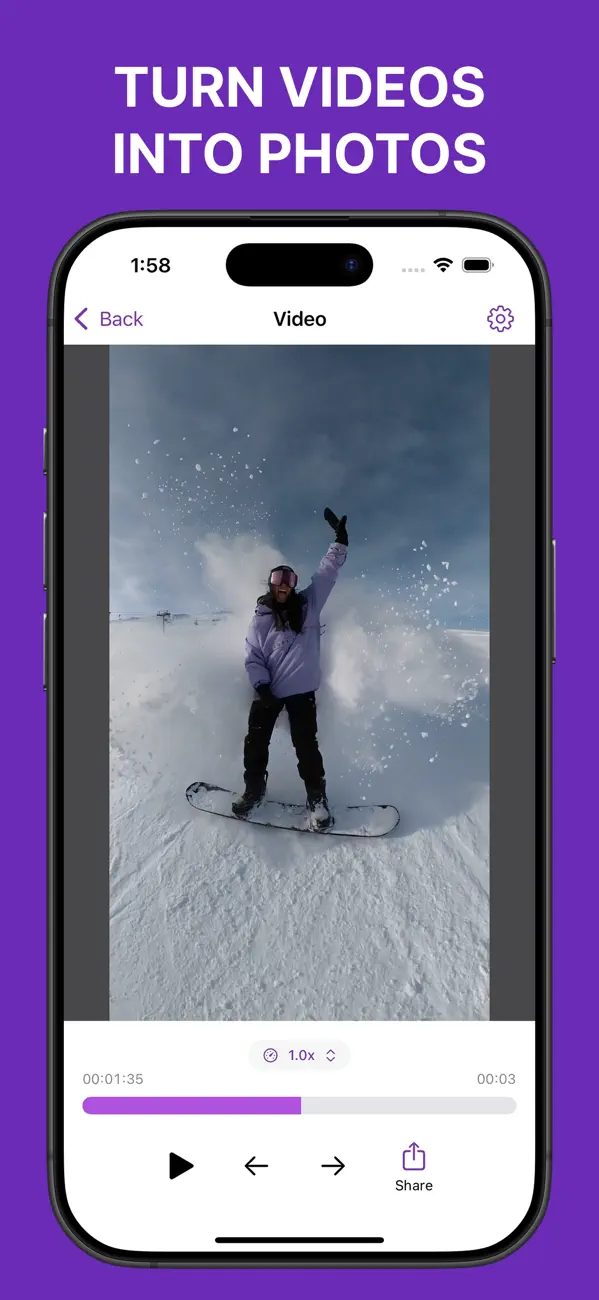
Everything is processed on your iPhone, with no account and no ads, and it runs on iOS 17.6 or later.
Tips for getting a sharp frame from a video
- Shoot at a higher frame rate when you know the moment will be fast. 60 fps gives you twice as many frames to choose from as 30 fps.
- Step a few frames either side of the moment you want. Motion blur varies from frame to frame, and the sharpest one is often right next door.
- Keep the original video. A frame can’t be sharper than its source, so avoid working from a compressed copy someone sent you.
- Use PNG if you’ll edit the photo, so it doesn’t lose quality each time you save.