Comparison
Video Screenshot vs Frame Extraction on iPhone
Compare an iPhone video screenshot with a frame extracted from the source file, including resolution, controls, cropping, and export options.
Updated 2 min read

Frame Grabber is free to download.

Short answer
A screenshot captures the video as displayed on your screen. Frame extraction saves a separate image from the video file, without player controls. On iOS 27, Photos can save a paused video frame directly. Use a dedicated extractor when you need more precise selection or a particular export format.
The frame looks right when the video is paused, but the screenshot includes a playback bar or empty space. Exporting an image from the video avoids that cleanup. On a recent iPhone, the first place to look is Photos itself.
We make Frame Grabber, one way to extract a frame. Photos or a screenshot may already cover what you need.
Screenshot and extraction at a glance
| Method | Image source | Best for |
|---|---|---|
| Screenshot | The displayed screen | A quick reference |
| Photos on iOS 27 | A paused video frame | A separate still with built-in tools |
| Dedicated extractor | A selected source frame | Precise selection and export choices |
What an iPhone screenshot captures
When you press the screenshot buttons, iOS records the current screen. The result can include the video player interface, letterboxing, or a frame scaled to fit the display.
This is often fine for a quick reference or message. It is less convenient when you want a photo to edit, print, archive, or reuse without cropping.
What frame extraction changes
Frame extraction works with the video file rather than the screen. You choose a point in the timeline, refine the choice one frame at a time, and export that image.
The saved image still depends on the source. A frame from a 1080p video does not become a full-resolution camera photo just because it was extracted. Motion blur and compression remain part of the frame.
Which method should you use?
On iOS 27, try Photos first: pause the video, open More, and choose Save Video Frame as Photo. Apple documents the built-in workflow. It may be enough when the right moment is easy to pause on.
Use a screenshot when speed matters more than file quality or cleanup. Use extraction when you need an exact moment, a clean image, or a specific format.
Before exporting, check the nearby frames. The sharpest image is often a frame just before or after the moment that first caught your eye.
Extract a frame with Frame Grabber
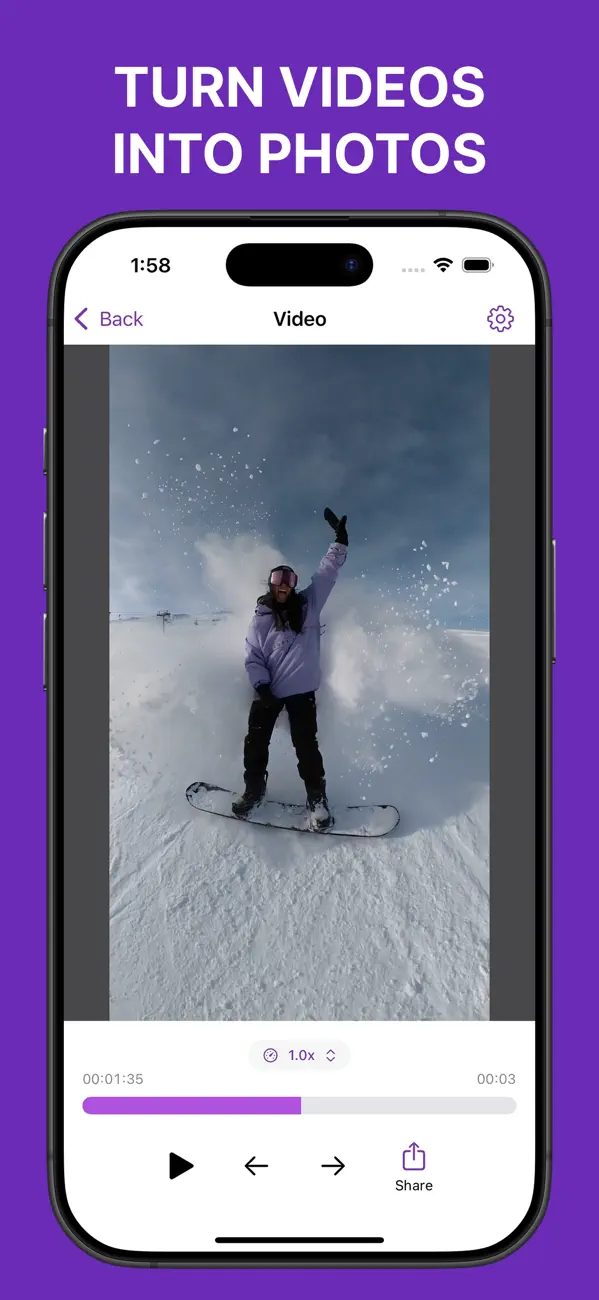
Frame Grabber opens videos and Live Photos from your library, lets you move one frame at a time, and saves the selected image without uploading the source.
Related reading: Best Video Resolution for Still Photos: 1080p vs 4K · JPEG vs HEIF vs PNG for an Extracted Video Frame · How to Save a Live Photo Frame Without Changing the Original.