Guide
How to Save a Live Photo Frame Without Changing the Original
Save another moment from a Live Photo as a separate still on iPhone. Compare frame export with changing the key photo and check image quality.
Updated 2 min read

Frame Grabber is free to download.

Short answer
Open the Live Photo in a frame extraction app, move through its recorded frames, choose the moment you want, and export it as a separate image. This leaves the original Live Photo and its current key photo unchanged. A Live Photo contains a main still image plus a short motion component.
Someone blinked in the Live Photo’s key image, but a nearby moment has the expression you want. You can keep that moment as a separate still and leave the original Live Photo for playback. First decide whether you want a new file or a different key photo.
Changing the key photo is a different job
If you want the Live Photo itself to open on another moment, Photos can do that: open Edit, choose the Live Photo control, move the frame selector, and tap Make Key Photo. Apple explains these edits.
For a separate picture while keeping the original key photo, export a frame to a new file instead. Choose this workflow when you want one expression for a message and still want the original Live Photo to play as before.
Find the useful part of the motion
Start near the current key photo and move slowly in both directions. In group shots, compare eyes and expressions. For pets or action, look for a frame with the least motion blur.
Do not assume the most flattering frame is also the sharpest. View the image at a larger size before exporting.
Save a copy, not a replacement
Choose an image format and export the selected frame to Photos or another destination.
When you export a separate image in Frame Grabber, the original Live Photo stays as it was. Check the new image in Photos before deleting or sharing anything.
Set realistic expectations for quality
The surrounding frames come from the motion part of the Live Photo and may not match the detail of its high-resolution key photo.
Extraction preserves the selected frame as cleanly as the chosen format allows. It cannot reconstruct detail that was not recorded.
Browse Live Photo frames in Frame Grabber
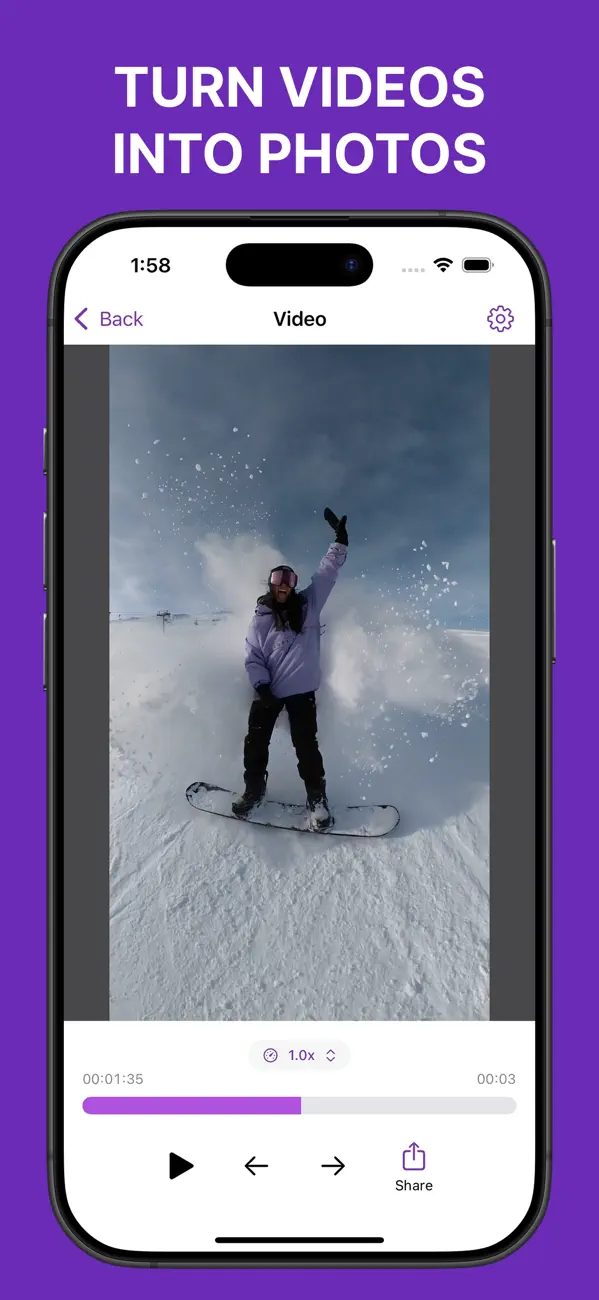
Frame Grabber lets you inspect the motion around a Live Photo and export one frame without editing the original.
Related reading: Video Screenshot vs Frame Extraction on iPhone · Best Video Resolution for Still Photos: 1080p vs 4K · JPEG vs HEIF vs PNG for an Extracted Video Frame.